VAT Invoices
Invoices will be issued automatically and sent to your email address.
{% elsif documentType == "receipts" %}Receipts
Receipts will be available for download in your client panel.
{% elsif documentType == "WZ" %}WZ Documents
Warehouse documents will be attached to each shipment.
{% else %}No option selected.
{% endif %} ``` ### Example 2: Multiple options (checkboxes) **Configuration:** - Field: Multiple choice field - Options: `invoices`, `receipts`, `WZ` - Variable name: `documents` **Code to paste:** ```htmlYou selected: {{ documents }}
{% if documents == "invoices, receipts" or documents == "receipts, invoices" %}We will prepare documents in both formats.
{% elsif documents == "invoices" %}We will only issue VAT invoices.
{% elsif documents == "receipts" %}We will only issue receipts.
{% else %}We will contact you regarding documentation.
{% endif %} ``` ⚠️ **Note:** For checkboxes, check different order of selections using `or`. --- ## Syntax ### Displaying values ```html {{ variableName }} ``` Displays the value selected by the user. ### Conditions ```html {% if variableName == "value" %}Content when condition is met
{% elsif variableName == "another_value" %}Content for another value
{% else %}Default content
{% endif %} ``` ⚠️ **Important:** Use `{% elsif %}` not `{% elif %}` ### Operators - `==` - equal - `!=` - not equal - `and` - and (both conditions must be met) - `or` - or (at least one condition) **Example with operators:** ```html {% if document == "invoices" and payment == "transfer" %}The invoice will be sent after the transfer is credited.
{% endif %} ``` --- ## Common issues ### Condition not working **Cause:** The variable name in the code differs from the name in the "Map to" field. **Solution:** Check if the variable name is identical (case-sensitive). ### Only "else" shows for checkboxes **Cause:** Different order of option selections not considered. **Solution:** Use `or` to check both orders: ```html {% if variable == "option1, option2" or variable == "option2, option1" %} ``` ### Syntax error **Cause:** Used `{% elif %}` instead of `{% elsif %}` **Solution:** Always use `{% elsif %}` (with the letter "s") ### Values do not match **Cause:** Differences in case or spaces. **Solution:** - `"Invoices"` ≠ `"invoices"` (case matters) - `"invoices, receipts"` ≠ `"invoices,receipts"` (space after the comma) --- ## Debugging If you are unsure what exact value is in the variable, add at the beginning: ```htmlDEBUG: {{ variableName }}
``` Fill out the form and see the displayed value. Then remove this line. --- ## Best practices ✅ **Use readable variable names:** `documentType` instead of `td` ✅ **Avoid hyphens in names:** `document_type` instead of `document-type` ✅ **For checkboxes, check different orders** using `or` ✅ **Close every condition:** each `{% if %}` requires `{% endif %}` ✅ **Test before publishing:** fill out the form for testing and check all possible selections --- ## Summary 1. Add a selection field to the form 2. Assign a variable name in "Map to" 3. Add conditional code in "Response after form submission" 4. Use syntax `{% if %}`, `{% elsif %}`, `{% else %}`, `{% endif %}` 5. Test all possible variants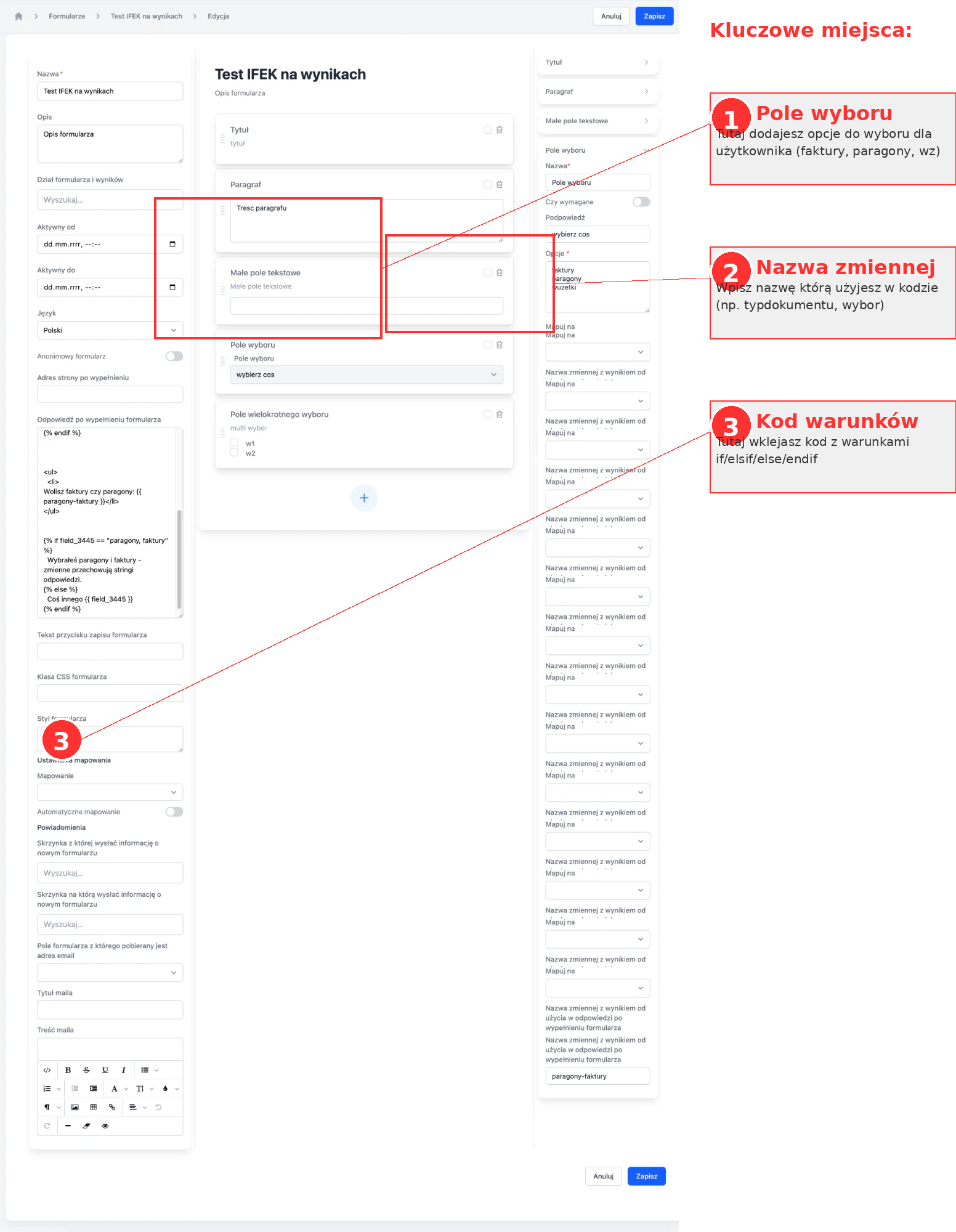 ---
## Email templates (template:)
Liquid conditions can also be used to **send different emails** depending on the selection. In the "Confirmation content" field, you enter:
```liquid
{% if subject == "Inquiry about an offer" %}template:1 Questions > Offer{% endif %}
{% if subject == "Account deletion" %}template:1 Questions > Account deletion{% endif %}
```
More: [Automatic email replies from forms](https://sugester.intum.com/kb/sugester-v2/automatyczne-zwrotki-mailowe-z-formularzy-szablony-Hjn4miei)
---
**Related articles:**
- [Automatic email replies from forms (templates)](https://sugester.intum.com/kb/sugester-v2/automatyczne-zwrotki-mailowe-z-formularzy-szablony-Hjn4miei)
- [Forms Module](https://sugester.intum.com/kb/sugester-v2/modul-formularze-zbieranie-zgloszen-i-danych-8Uq2CEaj)
---
## Email templates (template:)
Liquid conditions can also be used to **send different emails** depending on the selection. In the "Confirmation content" field, you enter:
```liquid
{% if subject == "Inquiry about an offer" %}template:1 Questions > Offer{% endif %}
{% if subject == "Account deletion" %}template:1 Questions > Account deletion{% endif %}
```
More: [Automatic email replies from forms](https://sugester.intum.com/kb/sugester-v2/automatyczne-zwrotki-mailowe-z-formularzy-szablony-Hjn4miei)
---
**Related articles:**
- [Automatic email replies from forms (templates)](https://sugester.intum.com/kb/sugester-v2/automatyczne-zwrotki-mailowe-z-formularzy-szablony-Hjn4miei)
- [Forms Module](https://sugester.intum.com/kb/sugester-v2/modul-formularze-zbieranie-zgloszen-i-danych-8Uq2CEaj)