[Sugester V2 EN](https://sugester.intum.pl/kb/sugester-v2-en.md) / [Helpdesk / Tickets](https://sugester.intum.pl/kb/sugester-v2-en/helpdesk.md)
# [Helpdesk - ticket view (client and operator)](https://sugester.intum.pl/kb/sugester-v2-en/helpdesk-ticket-view-client-and-operator.md)
## Ticket View - Client Page
The helpdesk widget allows clients to view their tickets and communicate with support.
### Client Ticket List
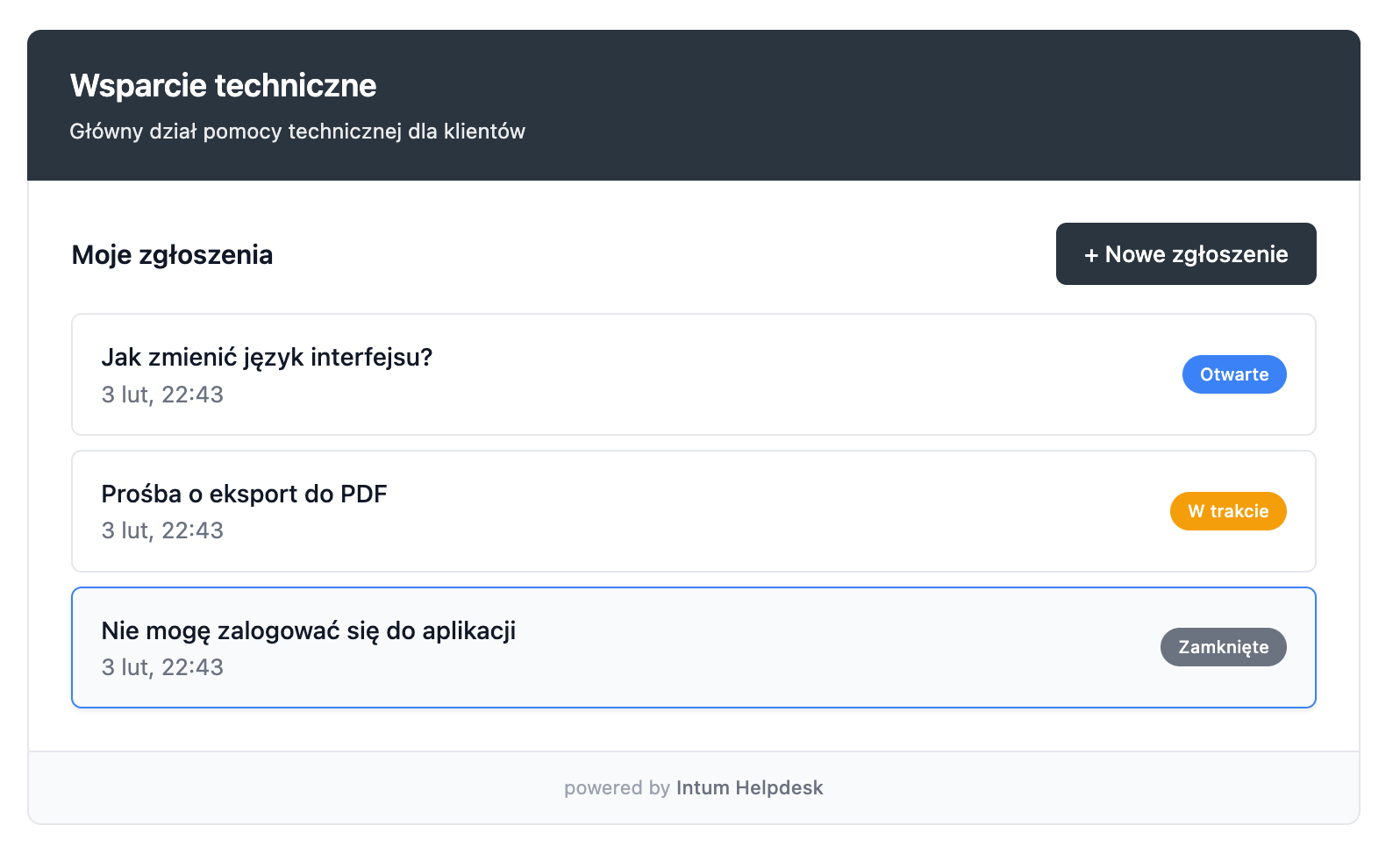
Upon entering the page with the widget, the client sees a list of their tickets along with their statuses. Each ticket shows:
- Ticket title
- Creation date
- Current status (colored badge)
 ### Ticket Details - Client View
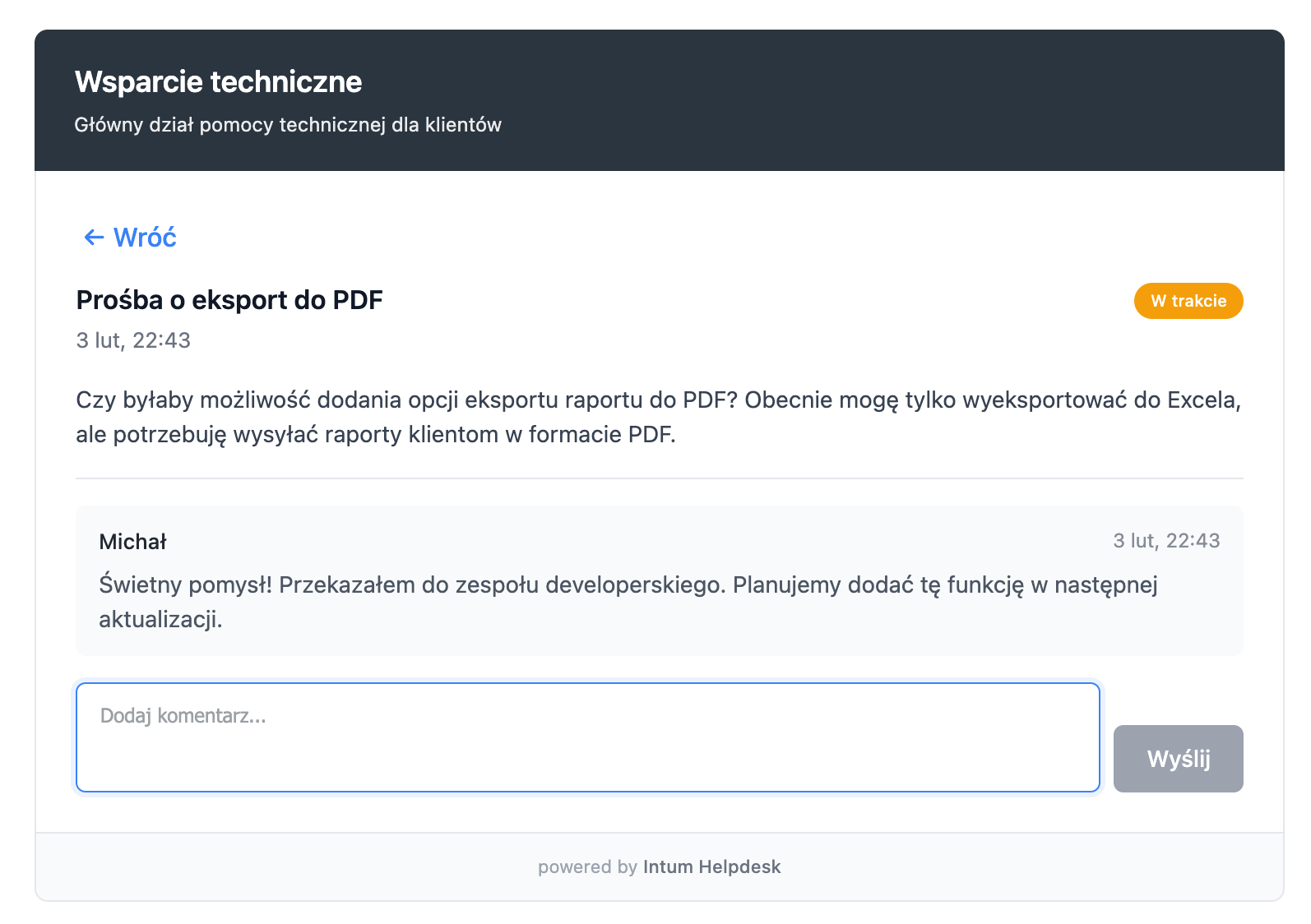
By clicking on a ticket, the client sees the full conversation history:
- Title and content of the original ticket
- Status and creation date
- List of comments highlighting who the author is
Comments are visually differentiated:
- **Support replies** - blue background with a blue bar on the left
- **Client messages** - gray background with a gray bar on the left
At the bottom, there is a field to add a new comment.
### Ticket Details - Client View
By clicking on a ticket, the client sees the full conversation history:
- Title and content of the original ticket
- Status and creation date
- List of comments highlighting who the author is
Comments are visually differentiated:
- **Support replies** - blue background with a blue bar on the left
- **Client messages** - gray background with a gray bar on the left
At the bottom, there is a field to add a new comment.
 ### Creating a New Ticket
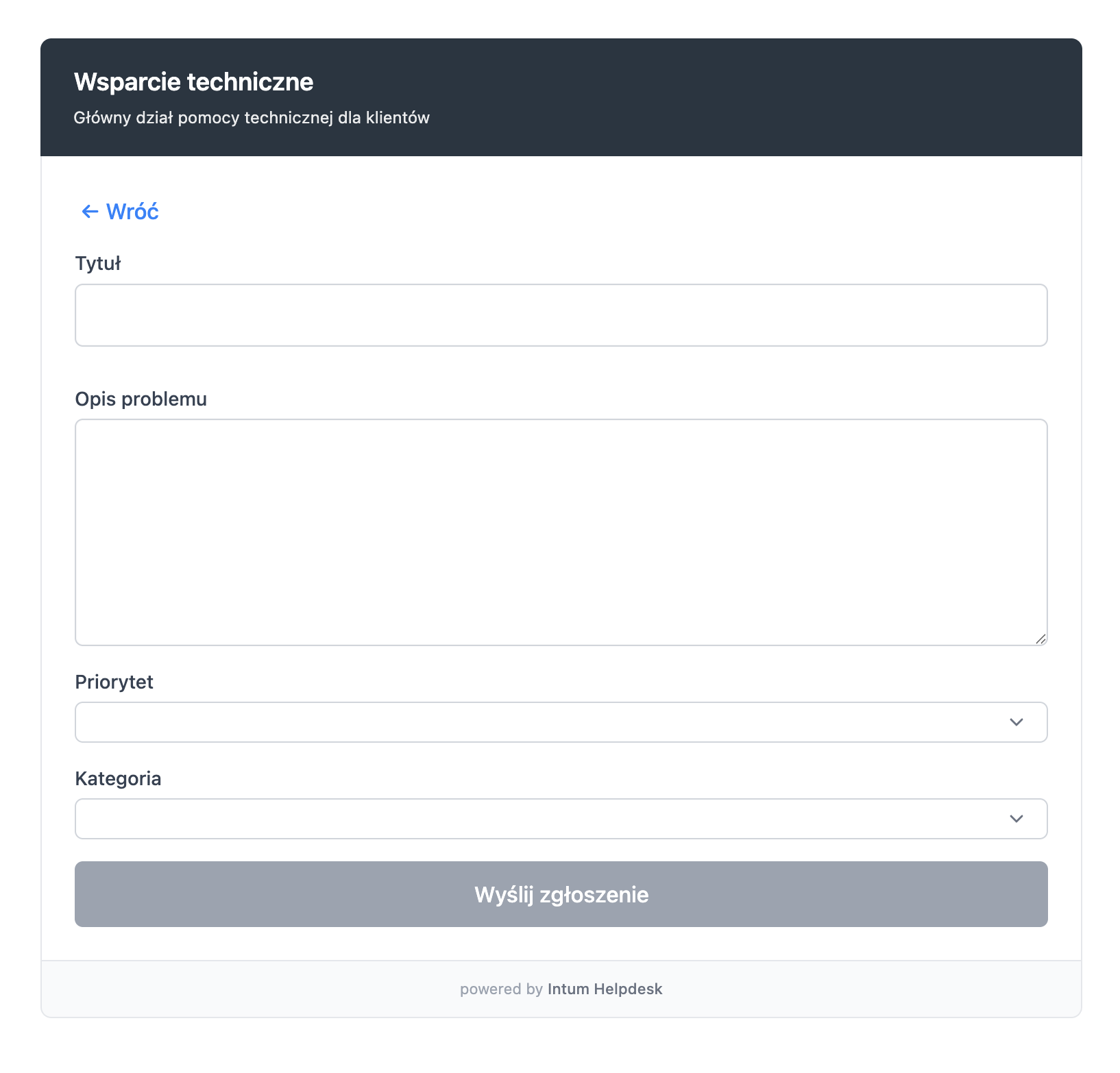
The client can create a new ticket by clicking the **+ New Ticket** button. The form includes:
- Ticket title
- Content/description of the issue
- Priority (optional)
- Category (if configured)
### Creating a New Ticket
The client can create a new ticket by clicking the **+ New Ticket** button. The form includes:
- Ticket title
- Content/description of the issue
- Priority (optional)
- Category (if configured)
 ---
## Public Ticket Link
Each ticket has a **unique public link** that allows the client to access the ticket without logging in and without the widget.
### How Does the Public Link Work?
- The link contains a unique ticket token (e.g., `/helpdesk/ticket/abc123xyz`)
- The client can open the link in a browser and see their ticket
- Through the public link, the client can view the history and **add comments**
- The link is automatically sent in email notifications (variable `{{ticket_url}}`)
### When to Use the Public Link?
- When the client does not have access to the widget on the page
- In email communication - the link allows the client to respond quickly
- For clients who prefer direct access instead of the widget
---
## Ticket View - Operator Panel
The operator panel allows for comprehensive ticket management.
### Ticket List
In the **Helpdesk** panel, you see a list of all tickets with filtering and sorting options:
- Status, priority, and category
- Client data
- Creation date and last update
---
## Public Ticket Link
Each ticket has a **unique public link** that allows the client to access the ticket without logging in and without the widget.
### How Does the Public Link Work?
- The link contains a unique ticket token (e.g., `/helpdesk/ticket/abc123xyz`)
- The client can open the link in a browser and see their ticket
- Through the public link, the client can view the history and **add comments**
- The link is automatically sent in email notifications (variable `{{ticket_url}}`)
### When to Use the Public Link?
- When the client does not have access to the widget on the page
- In email communication - the link allows the client to respond quickly
- For clients who prefer direct access instead of the widget
---
## Ticket View - Operator Panel
The operator panel allows for comprehensive ticket management.
### Ticket List
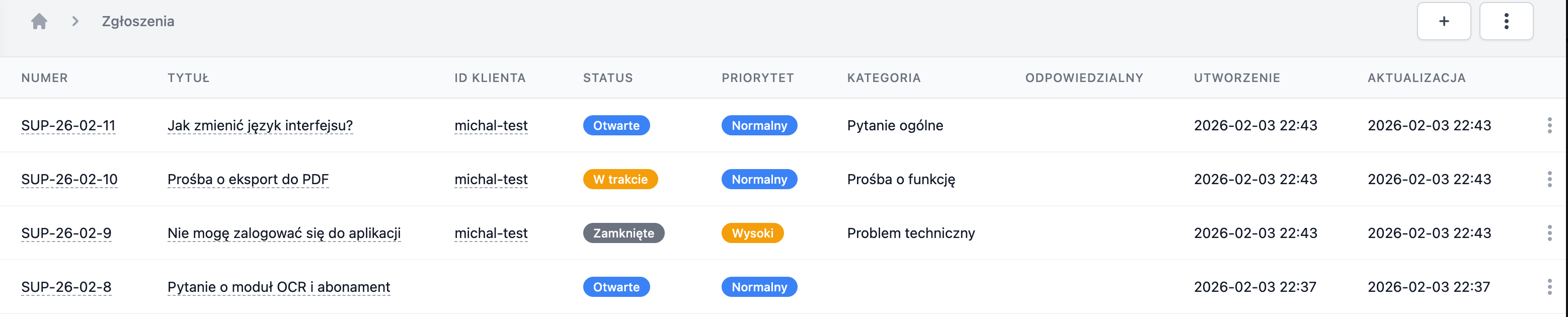
In the **Helpdesk** panel, you see a list of all tickets with filtering and sorting options:
- Status, priority, and category
- Client data
- Creation date and last update
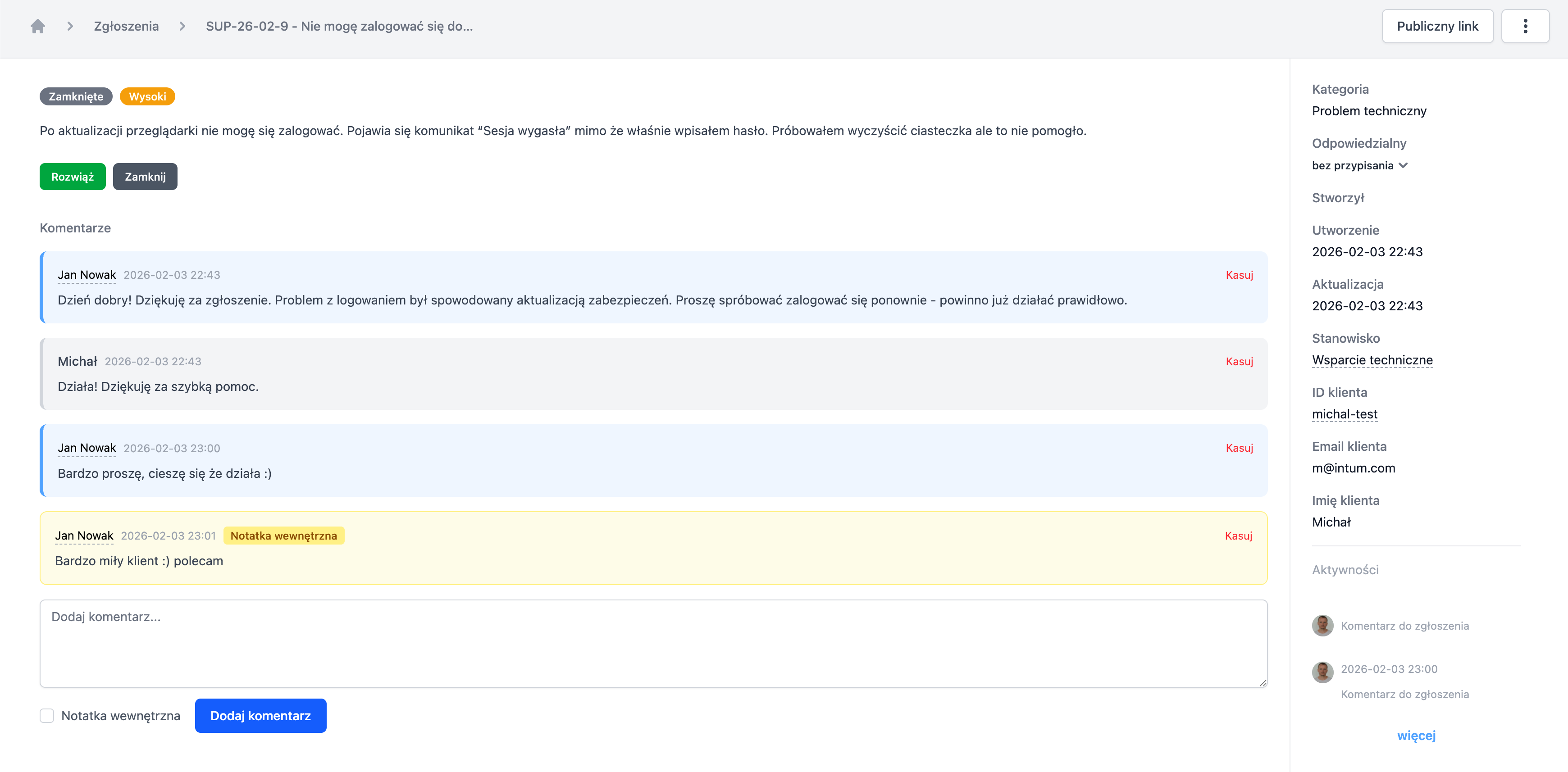
 ### Ticket Details - Operator View
The ticket details view includes:
**Left Column - Main Content:**
- Status and priority (colored badges)
- Ticket content
- Action buttons (Resolve, Close, Reopen)
- Comment history highlighting authors
**Right Column - Metadata:**
- Category and assigned employee
- Client data (email, name, external ID)
- Source information (widget, email)
- Related tasks
- Activity history
### Comments in the Operator Panel
Comments are color-coded:
- **Support replies** - blue background, visible employee name
- **Client messages** - gray background
- **Internal comments** - yellow background with the label "Internal" (visible only to employees)
### Ticket Details - Operator View
The ticket details view includes:
**Left Column - Main Content:**
- Status and priority (colored badges)
- Ticket content
- Action buttons (Resolve, Close, Reopen)
- Comment history highlighting authors
**Right Column - Metadata:**
- Category and assigned employee
- Client data (email, name, external ID)
- Source information (widget, email)
- Related tasks
- Activity history
### Comments in the Operator Panel
Comments are color-coded:
- **Support replies** - blue background, visible employee name
- **Client messages** - gray background
- **Internal comments** - yellow background with the label "Internal" (visible only to employees)
 ### Adding a Comment
The operator can:
- Add a reply visible to the client
- Mark the comment as **internal** (visible only to the team)
- Send an email notification to the client (if configured)
---
## Related Tasks
From the ticket level, you can create and manage tasks in the **Organization** module.
### Creating a Task from a Ticket
Click the **Add Task** button in the ticket view. The system will create a new task:
- The task title will be automatically filled with the ticket title
- The task will be immediately linked to the ticket
- After saving the task, the link will be visible on both sides
### Linking to an Existing Task
Click **+ Link Task** and search for the task by name. Multiple tasks can be linked to one ticket.
### Managing Links
- The list of related tasks is displayed in the right column of the ticket
- Closed tasks are displayed with a strikethrough
- Clicking on the task name opens it in the Organization module
- The link can be removed from the ticket level or from the task level
- The task card also shows the list of related tickets
### Adding a Comment
The operator can:
- Add a reply visible to the client
- Mark the comment as **internal** (visible only to the team)
- Send an email notification to the client (if configured)
---
## Related Tasks
From the ticket level, you can create and manage tasks in the **Organization** module.
### Creating a Task from a Ticket
Click the **Add Task** button in the ticket view. The system will create a new task:
- The task title will be automatically filled with the ticket title
- The task will be immediately linked to the ticket
- After saving the task, the link will be visible on both sides
### Linking to an Existing Task
Click **+ Link Task** and search for the task by name. Multiple tasks can be linked to one ticket.
### Managing Links
- The list of related tasks is displayed in the right column of the ticket
- Closed tasks are displayed with a strikethrough
- Clicking on the task name opens it in the Organization module
- The link can be removed from the ticket level or from the task level
- The task card also shows the list of related tickets