[Sugester V2 EN](https://sugester.intum.pl/kb/sugester-v2-en.md) / [Settings](https://sugester.intum.pl/kb/sugester-v2-en/settings.md)
# [Navigation and fields in the system](https://sugester.intum.pl/kb/sugester-v2-en/navigation-and-fields-in-the-system.md)
### Interface
**Organization Dashboard** is divided into 4 sections:
1. **Main Window** - displays the modules: Tasks, Task Lists, Projects, Teams, and Settings. A single mouse click is enough to navigate to the selected module.
2. **Sidebar** - provides access to the application's homepage, new tasks, notifications, and new email messages for the logged-in user.
3. **Top Bar** - allows quick registration of the user's work start/end, access to other application modules such as: Knowledge Bases, CRM, Mail, Account Settings, and the ability to go to notifications and the user profile.
4. **Search Bar** - enables quick searching within the application.
### Main Window
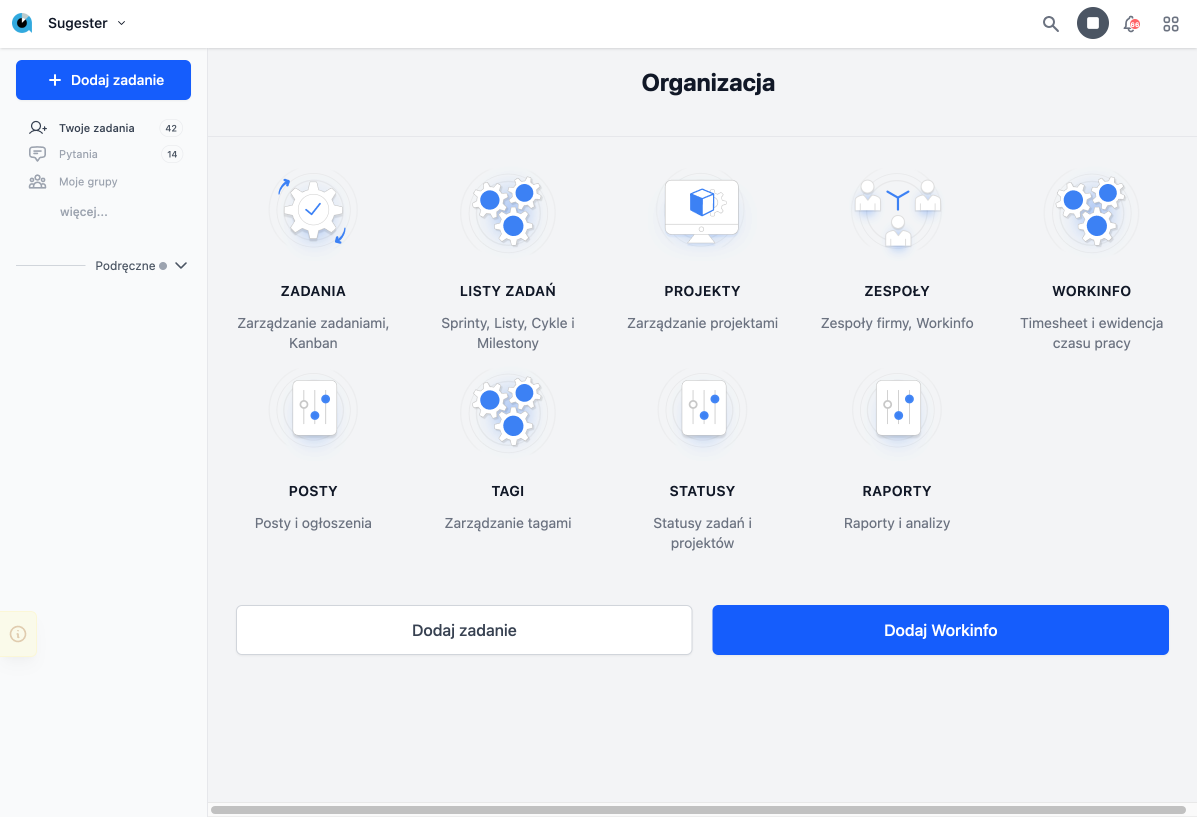 From the main window, you can:
1. go to the **Tasks** module, where you will find all tasks assigned to the logged-in user as well as tasks from all teams.
2. go to the **Task Lists** module, where you can browse, for example, **Sprints** and **Milestones** and create new ones.
3. go to **Projects**, where you can view a list of all projects and create a new one.
4. see all **Teams** added to Sugester. By default, the logged-in user has access to information about their **Team** - members of the **Team**, **Projects**, **Tasks**, activities, **Leaves**, and **Workinfo**. They can also access information about other teams by clicking **View all** in the top right corner.
5. go to **Settings**, where you can add or edit **Statuses** for tasks.
6. quickly create a new task in the system by clicking **Add task**.
7. add information about worked hours and completed tasks by clicking the **Add Workinfo** button.
### Sidebar
From the main window, you can:
1. go to the **Tasks** module, where you will find all tasks assigned to the logged-in user as well as tasks from all teams.
2. go to the **Task Lists** module, where you can browse, for example, **Sprints** and **Milestones** and create new ones.
3. go to **Projects**, where you can view a list of all projects and create a new one.
4. see all **Teams** added to Sugester. By default, the logged-in user has access to information about their **Team** - members of the **Team**, **Projects**, **Tasks**, activities, **Leaves**, and **Workinfo**. They can also access information about other teams by clicking **View all** in the top right corner.
5. go to **Settings**, where you can add or edit **Statuses** for tasks.
6. quickly create a new task in the system by clicking **Add task**.
7. add information about worked hours and completed tasks by clicking the **Add Workinfo** button.
### Sidebar
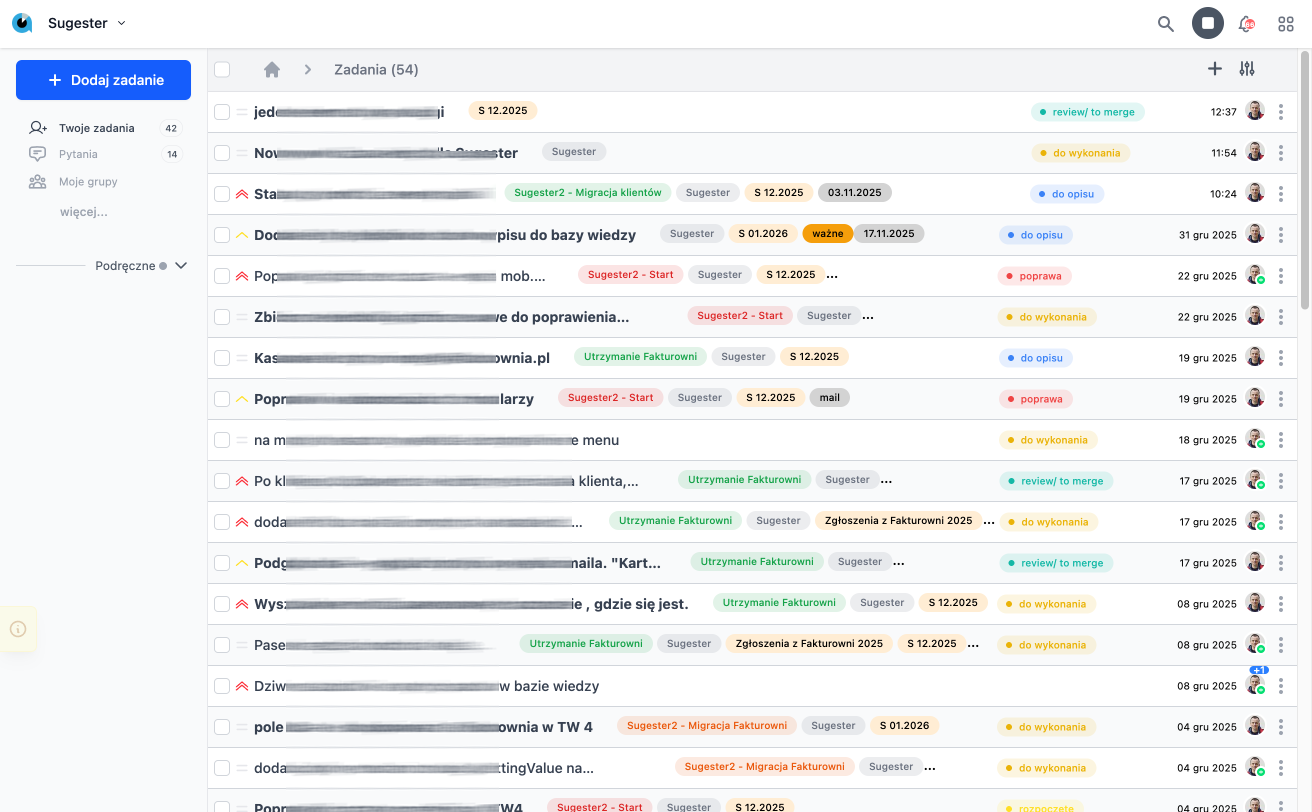 From the Sidebar, you can:
1. go to the homepage by clicking on the Sugester logo.
2. go to the list of new tasks that have appeared in the system for the logged-in user by clicking the **New tasks** tab.
3. go to the **Notifications** list for the logged-in user.
4. go to the list of email messages for the logged-in user.
Depending on the module, the **Sidebar** will disappear or display different tabs.
**Sidebar for the modules: Tasks, Task Lists, Projects, and Teams**
1. By clicking **+Add task**, we can create a new task.
2. **Your tasks** - this tab shows the list of current, open tasks assigned to the logged-in user; by clicking the dropdown arrow, additional tabs are visible.
3. **Added by you** - here we find current tasks created by the logged-in user.
4. **Watched** - this tab displays all open tasks in which the logged-in user is added as a **Watcher**.
5. **Future** - this section displays tasks for future days other than today assigned to the logged-in user.
6. **All** - here we find a list of all tasks (open and closed) from all teams.
7. **Future** - this section displays future tasks for the entire team.
**Sidebar for the Knowledge Base module**
1. the **+Add knowledge base** button - allows creating another **Knowledge Base**.
2. the **All entries** button - allows you to go to all knowledge bases created on the account.
3. **Categories** - allows displaying a list of all **Categories** for all knowledge bases on the account.
For other modules in the system, the **Sidebar** is not visible.
### Top Bar
From the Sidebar, you can:
1. go to the homepage by clicking on the Sugester logo.
2. go to the list of new tasks that have appeared in the system for the logged-in user by clicking the **New tasks** tab.
3. go to the **Notifications** list for the logged-in user.
4. go to the list of email messages for the logged-in user.
Depending on the module, the **Sidebar** will disappear or display different tabs.
**Sidebar for the modules: Tasks, Task Lists, Projects, and Teams**
1. By clicking **+Add task**, we can create a new task.
2. **Your tasks** - this tab shows the list of current, open tasks assigned to the logged-in user; by clicking the dropdown arrow, additional tabs are visible.
3. **Added by you** - here we find current tasks created by the logged-in user.
4. **Watched** - this tab displays all open tasks in which the logged-in user is added as a **Watcher**.
5. **Future** - this section displays tasks for future days other than today assigned to the logged-in user.
6. **All** - here we find a list of all tasks (open and closed) from all teams.
7. **Future** - this section displays future tasks for the entire team.
**Sidebar for the Knowledge Base module**
1. the **+Add knowledge base** button - allows creating another **Knowledge Base**.
2. the **All entries** button - allows you to go to all knowledge bases created on the account.
3. **Categories** - allows displaying a list of all **Categories** for all knowledge bases on the account.
For other modules in the system, the **Sidebar** is not visible.
### Top Bar
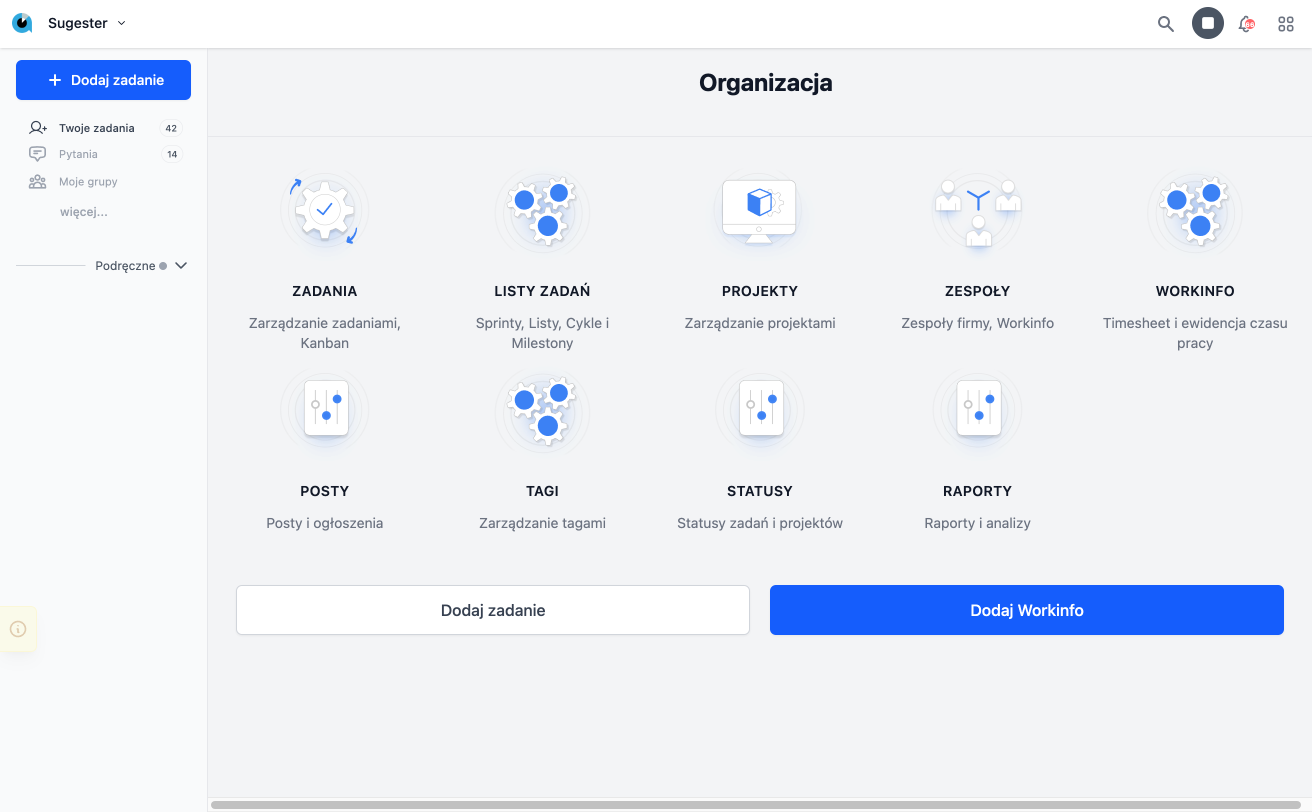 From the Top Bar, you can:
1. register the start and end of work. Simply - when starting work click the green "start," and at the end of work click the gray "stop."
2. go to other modules such as **Knowledge Bases**, **Accounts**, **CRM**, and **Mails**.
3. view the list of recent **Notifications**. If you want to see all your **Notifications**, click **See all**.
4. go to the user's **Profile**, where the logged-in user can check their work time, recent tasks, leaves, and activities, and set the application's light or dark mode.
### Search Bar
From the Top Bar, you can:
1. register the start and end of work. Simply - when starting work click the green "start," and at the end of work click the gray "stop."
2. go to other modules such as **Knowledge Bases**, **Accounts**, **CRM**, and **Mails**.
3. view the list of recent **Notifications**. If you want to see all your **Notifications**, click **See all**.
4. go to the user's **Profile**, where the logged-in user can check their work time, recent tasks, leaves, and activities, and set the application's light or dark mode.
### Search Bar
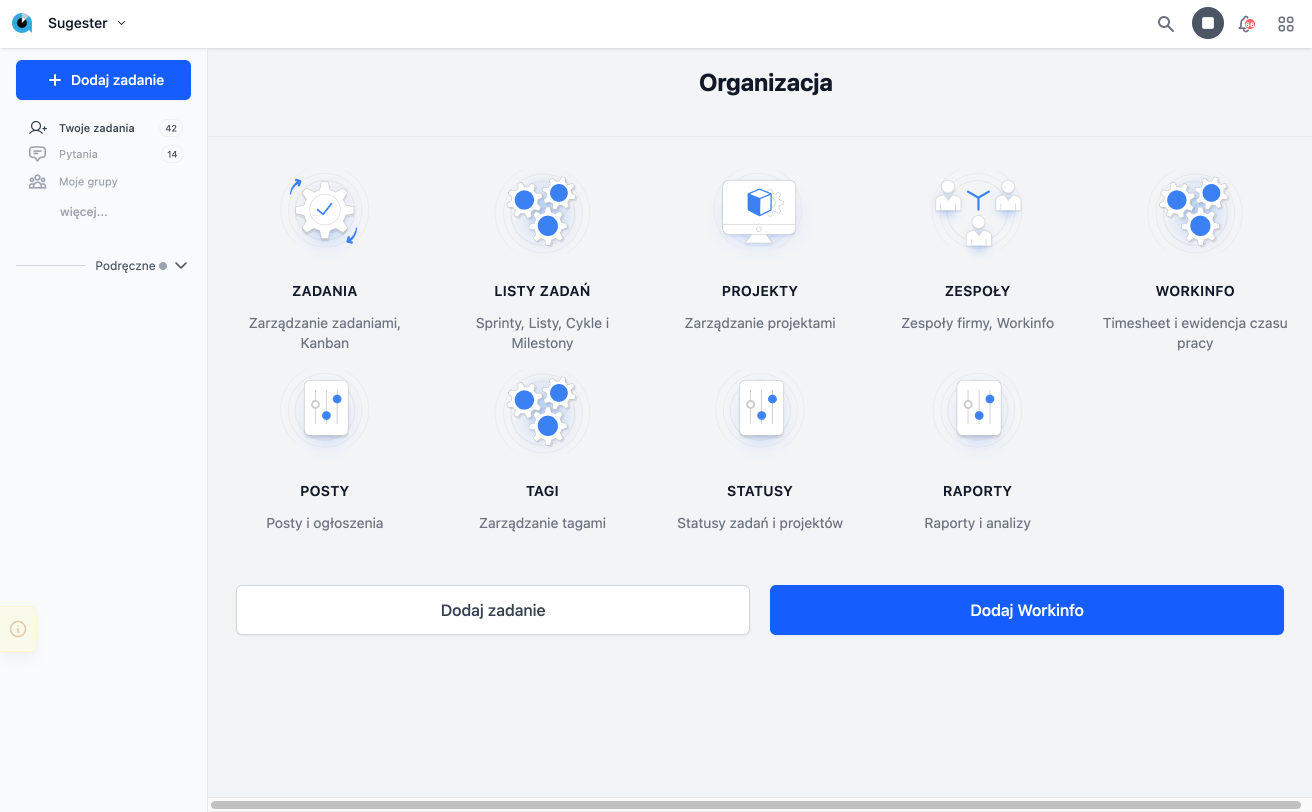 With the **Search Bar** in the **Top Bar**, you can search for any information about the team, ongoing project, or task being carried out. Just type in a keyword, and the system will display all matching results, which appear not only in titles but also in content, comments, and descriptions of posts within the system.